Give students an AI course companion that helps them put your lessons into practice.
The lesson made perfect sense when they watched it. Then they opened the worksheet. If you teach an online course or run a membership, you probably know which exercise sends people straight to your inbox. They’ve watched the video. They want to know what to do in their situation.
Coachvox lets course creators and online educators train an AI chatbot on the lessons, transcripts and worksheets they already have. Students can chat with the course material to revisit a concept, or get help applying it from an AI version of you that uses your teaching approach. Give enrolled students access inside the course, or share your AI as a lead magnet so prospective students can get a feel for how you teach before they buy.
A “chat to course” AI is trained on your course material so students can ask questions about what you teach. If someone can’t remember the difference between two approaches in module three, they can ask. No need to drag the playhead around a 40-minute video looking for a sentence they’re fairly sure you said.
An AI course companion can also help students use what they’ve learnt. Take a lesson on delegation. “What are the steps in your delegation framework?” is a question about the material. “I handed the work over and it still ends up back on my desk. What would you do?” is a question about applying it.
Your lessons give the AI what you teach. Your examples, answers to student questions and teaching approach help it respond when the situation doesn’t look quite like the one in the worksheet.
If you’re starting from scratch, follow our guide to creating an AI coach for the general Coachvox setup. Here’s what to do differently when the AI is going inside a course.
Upload lesson text, video transcripts, worksheets and worked examples. Then look at what students ask after they’ve gone through the material. If you’ve typed the same explanation six times in your course community, give that to your AI too.
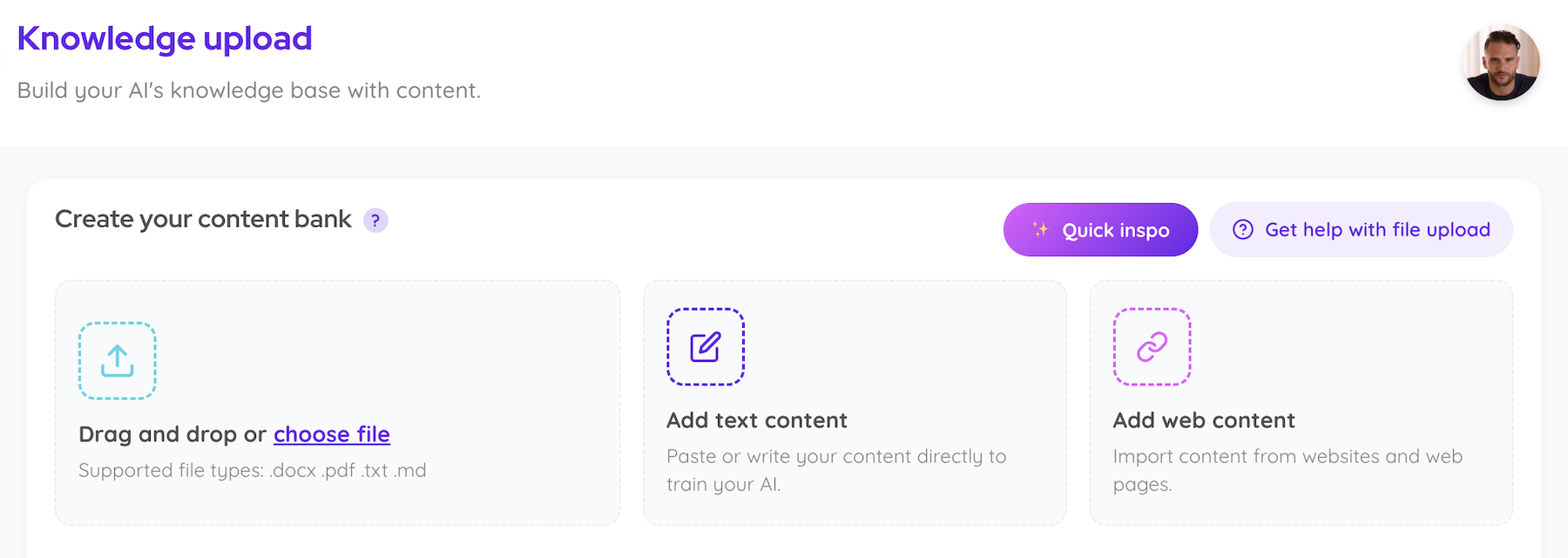
If your AI is mainly there to answer questions about the lessons, your course material may be enough. If you want it to guide students through an exercise the way you would, go to Engagement in Coachvox and turn on Use my coaching methodology under Advanced coach mode.
Tell it what you’d ask before offering advice. For a course on delegation, you might write: ‘If a student says a task landed back on their desk, ask how they briefed the person and what they agreed “done” looked like. Then help them work out what to change next time.’
Use your personality and tone settings and the style sliders to adjust how the AI sounds. The methodology is where you tell it how to guide the student through the problem.
In Coachvox’s Fine-tuning area, ask one question about a lesson and one about applying it. Use the sort of wording students actually use. ‘I tried it and it didn’t work’ is a better test than a beautifully written question that names the exact framework. If the reply sends them back to the video without helping them work out what went wrong, edit it and save the improved answer to your training data.
Embed the chat alongside the lesson or exercise where students are most likely to need it. If it’s useful across the whole course, give it a dedicated ‘Ask the AI’ page and link to it from the relevant modules. Add one or two starter questions so students know what they can ask. ‘Help me work out what to hand over first’ gives them more to go on than ‘Start a chat’.
Students can ask for help while they’re working on a lesson, without waiting for you to reply or saving the question for the next group call. And you get to see which parts of the course keep tripping people up.
When someone gets stuck on an exercise, your AI can ask what they’ve tried and help them work out what to do next. That leaves more time on your live calls for the questions that need your judgement or feedback.
If your course includes live coaching, you can also use your AI to support clients between sessions, including when their question goes beyond the lesson they’re working on.
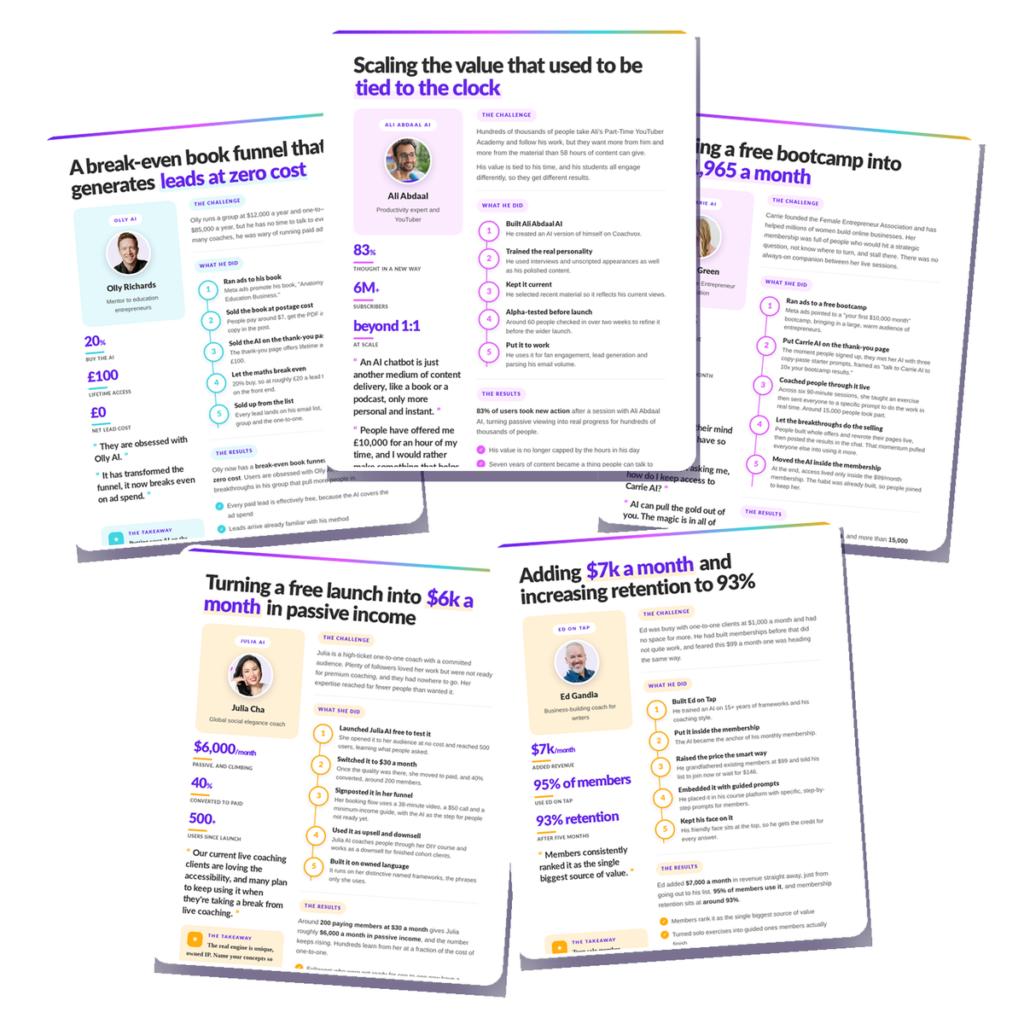
Carrie Green trained her AI on her course materials and business resources, then made it available inside her membership so people could get help between calls. You can see how Carrie, Ali Abdaal, and other online educators use AI to support their students.
Look at what students ask your AI. If they keep asking what a finished worksheet should look like, add a completed example to the lesson. The AI can help the student who’s stuck today. The next one might not need to ask.
Start with the lesson that sends the most students to your inbox. Give your AI the lesson, the worksheet and the answer you keep typing out. Then put the chat next to the exercise and see what students ask when they get stuck.
Coachvox onboarding takes about 10 minutes. You’ve got two full weeks on the free trial to train your AI on your course material and try it with a few students. If you need a hand setting it up or adding it to your course, we’re here to help.
Here’s how to use the lessons you already have and decide who gets access to your AI.
Yes. You can add a Coachvox AI companion without rebuilding the course. Start with the module that generates the most questions and add the chat alongside it. See what students ask before deciding where else to put it.
Yes. Upload the video transcripts or paste them into Coachvox as text. If you demonstrate something on screen that you don’t explain out loud, add a short written explanation or a worked example. A link to a video on its own won’t import the lesson.
No. Coachvox’s URL import can read public web pages, but it can’t sign in to your course platform. Export the lesson text, transcripts or worksheets and upload those directly instead.
Yes. Coachvox provides an embed code for platforms that accept custom HTML. In Circle, use the alternative embed link. If your platform doesn’t support embeds, you can link to the chat from a lesson or course resources page.
Yes. Embed the chat inside a lesson or course area that students need to sign in to access. You can also restrict the AI to your course platform’s domain so the embed can’t be used elsewhere. A share link on a private page isn’t the same as restricted access. It can still be forwarded.
Yes. Train it on the material you want it to use and turn on Only my content in Coachvox. If it doesn’t have relevant material for a question, it’ll say so. The setting applies to everything you’ve trained that AI on, so leave unrelated material out if you want it to stay within the course.
Yes. Give prospective students an AI version of you trained on selected lessons or a framework you’re happy to share. They can try your teaching approach before they buy, while the full course stays for enrolled students. Here’s how to create an AI lead magnet.